The first step in the recording process is setting up your recording studio/office/environment, so your work looks and sounds great. These are some ideas to keep in mind as you choose a recording location:
Neutral backgrounds are best
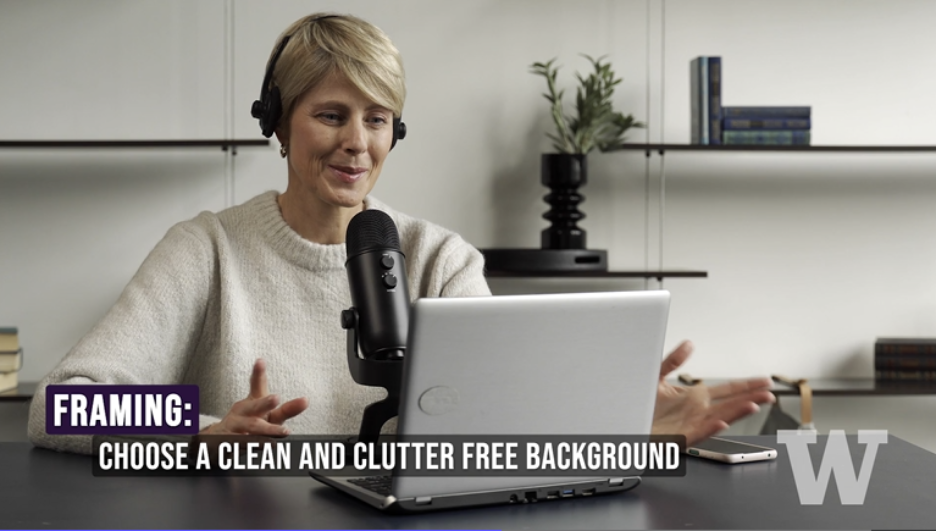
What’s behind you in the recording?
- Viewers can be distracted by a cluttered background that draws their attention away from the speaker. Strive to set up a simple, clean background for your recordings. Personal touches are okay.
- If needed, it’s okay to “pivot” your position, or the position of your computer, so the camera webcam captures a different angle.
Natural daylight is the best light
Daylight streaming in a window is the best light for video recording, and it’s easier to work with than a lamp or overhead lights. (Daylight on a cloudy day is brighter than most indoor lighting.)

- Orient yourself so you’re facing the daylight. Or sit in profile so daylight washes over one side of your face.
- If the sun is too strong (your face is “blown-out,”), try pulling a curtain, hanging some light fabric, or… move back from the window to decrease the intensity of the light.
- If you’re recording with a laptop, take advantage of this mobility and move to a good location with good lighting and background.
Inside lights and lamps
If you’re recording inside (likely) but windows don’t cast enough light (possible)?
- Turn on the lights and lamps! The more light, the better. If the inside lighting is too bright, you can turn one off at a time.
- Whenever possible, face the main lighting source in the room (a lamp, or a window)
- Avoid positioning yourself so that a strong light source is directly behind or directly above you; this creates a harsh lighting effect.
Lighting tip
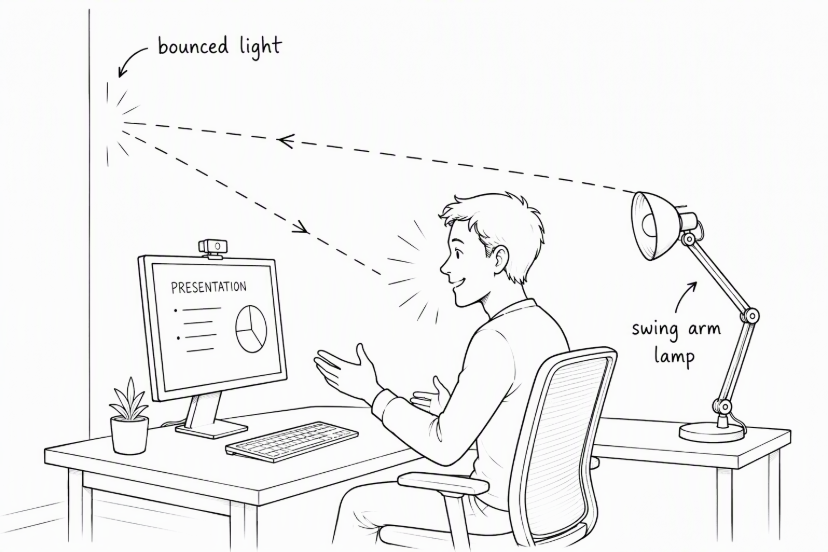
Using a swingarm lamp (or any light), direct the light so it bounces off a wall (and back toward you). This creates a softer light and makes faces look good on camera.
Pick a quiet location to record
Nothing ruins a recording faster than background noise. Don’t try to record if you hear music, leaf blowers, barking, or a loud conversation in the background.
Get the best sound from your microphone
To record the highest quality audio, position the microphone so it is approximately 8 inches away from your face.
External (plug-in) microphones typically deliver better sound quality compared to a computer’s on-board microphone.
There are many options for external mics, at many price points. If you have access to a desktop mic, a lavalier (clip-in) mic, or any mic that plugs into the computer, use it!
Pro tip: Test record
You might be inclined to skip a practice/ test recording, but we highly suggest recording a few short “takes” to double check everything is working as expected, before recording the full-length video.
Record the first 15 or 30 seconds of your video, then review.
This allows you to adjust lighting, audio volume, or your position in the recording frame.
As you review the test recording, consider:
- Is the background clean and clutter-free, and the way you want it to look?
- How are you positioned in the camera frame? (Is there suitable head space above your head?)
- Enough lighting to brighten your face?
- Any background noise—voices, appliances, traffic—that could be avoided? Adjust!