What is accessibility?
The University of Washington and Continuum College are committed to creating accessible courses and documents in compliance with federal accessibility standards.
Accessibility creates a community where everyone can bring their whole self to a course and have the opportunity to thrive. Offering an accessible course and learning materials recognizes the needs of every student whether or not they have a disability.
Accessible technology includes all digital documents, Canvas courses, websites, software, hardware, video, and audio.
Continuum is working to meet the Web Content Accessibility Guidelines (WCAG) 2.2. by April, 2026.
Best Practices
- Use accessibility checkers for Canvas, and digital documents, such as Word, Powerpoint, and PDF, to scan for accessibility errors you can fix (see below).
- Visit Continuum’s Accessibility resources main page and tutorials about how to make your digital content accessible, including a series of short, informative videos.
- Continuum’s Instructor Development team can help you get started, or advise on technical issues. Sign up for a 1:1 consultation.
What accessibility tools are available to you?
Ally
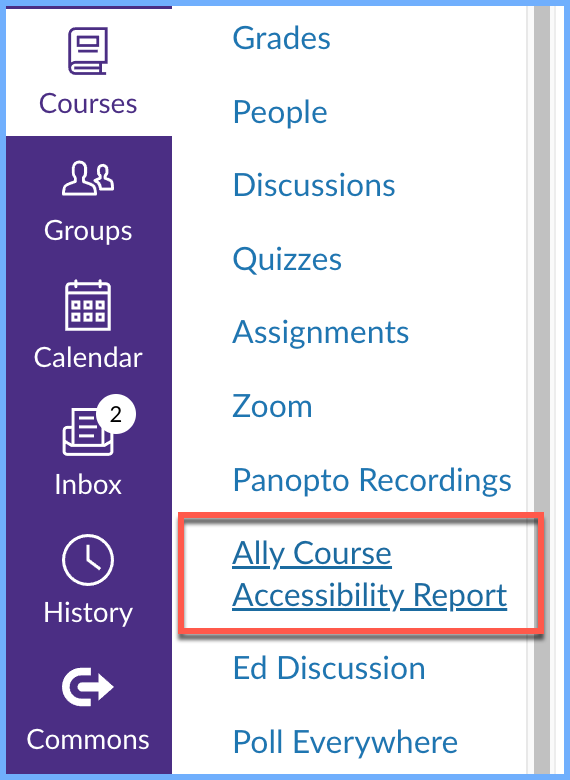
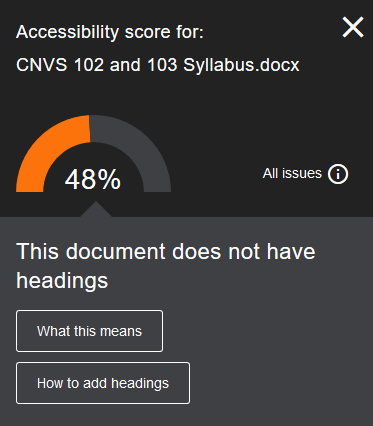
The Ally checker tool is integrated with Canvas. Ally automatically scans for issues and displays a gauge for every file in the course to show levels accessibility score of red, yellow, green, or dark green (green is high, dark green is perfect). These gauge indicators will appear in the Files section, and next to linked files in the Rich Content Editor within Pages, Assignments, the Syllabus, etc.
These gauge indicators are not visible to students. Clicking on the gauge will provide you with an explanation of the problems identified, and guidance on how to fix them.
Use Ally’s checker interface to fix issues with Canvas content; files need to be downloaded, fixed, and uploaded back to the course.
A11y also produces alternative formats for files, including:
- OCR’ed PDF (Optical Character Recognition: automatically extracted text for improved reading and searching)
- HTML version
- ePub version (for reading as an e-book on an iPad or other e-book readers)
- Electronic braille version (BRF version for consumption on electronic braille displays)
- Audio (MP3 version for listening)
Note: Students are only able to view and download alternative formats. They are not able to view the gauge indicators.
Canvas Accessibility Checker
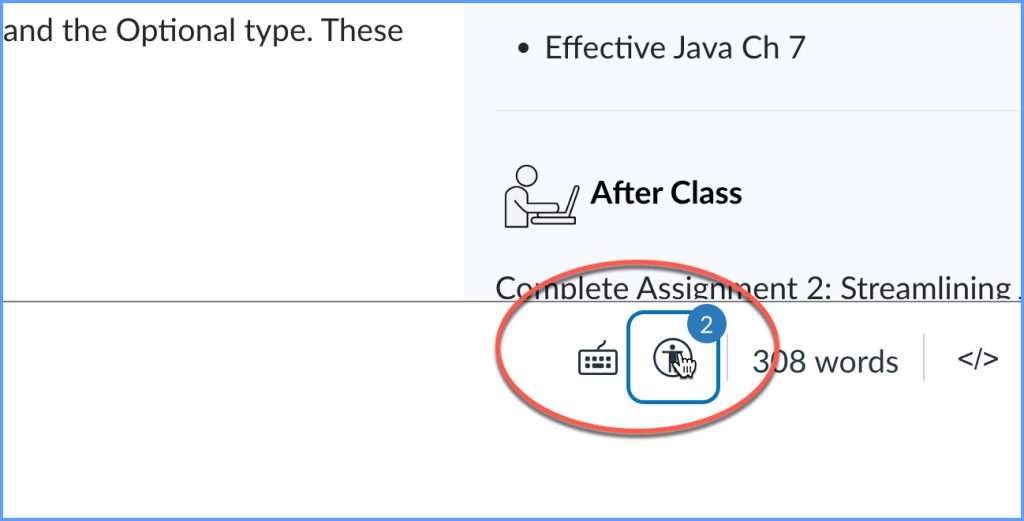
Use Canvas’ checker tool to identify and fix common accessibility errors within the Rich Content Editor. This tool will only verify content created within the Rich Content Editor, and for the content that you are currently editing.
The Accessibility Checker scans for multiple accessibility issues including:
- Table captions: Tables should include a caption describing the contents of the table.
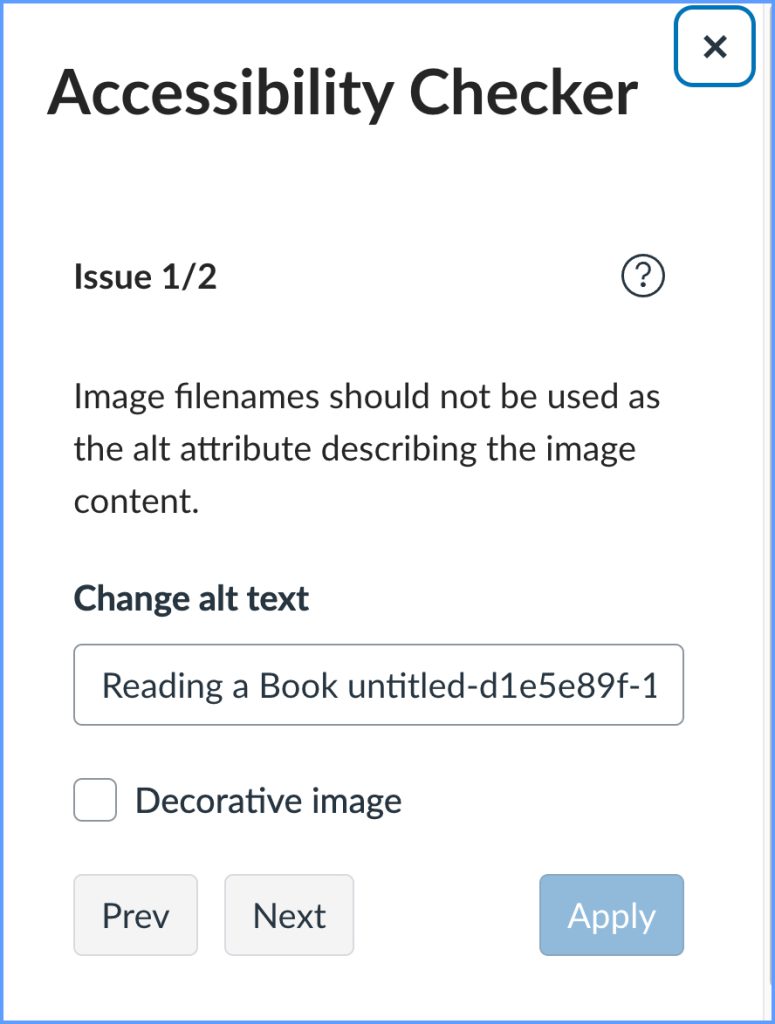
- Image alt text: Images should include an alt attribute describing the image content.
- Large text contrast: Text larger than 18pt (or bold 14pt) should display a minimum contrast ratio of 3:1.
When an issue is detected, the Rich Content Editor highlights the affected area, and a sidebar will appear to display the accessibility attribute, and an explanation of the error. The checker will also guide you through how to resolve the issue.
UDOIT Canvas Accessibility Checker
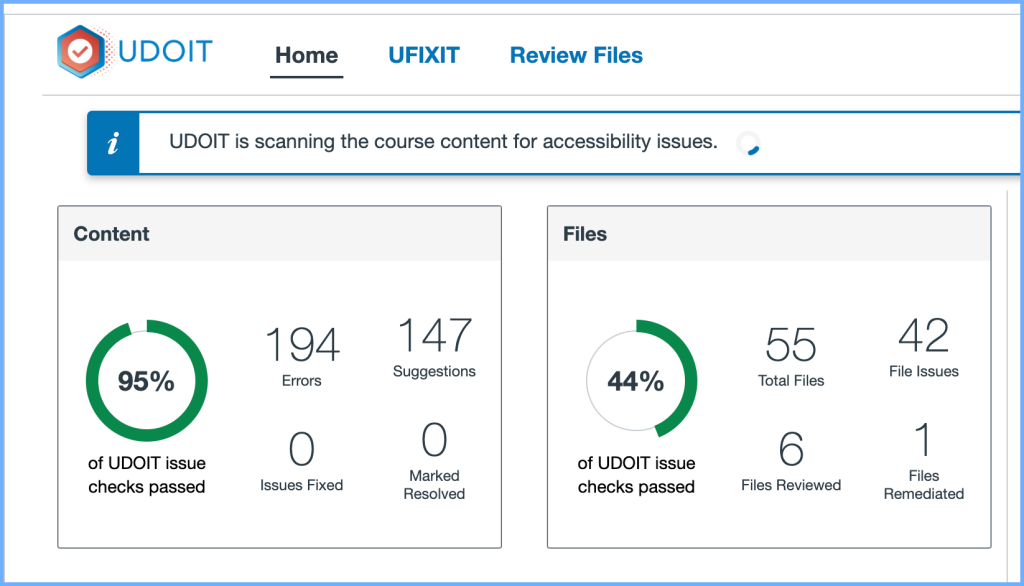
The Canvas UDOIT accessibility tool scans both Canvas course content and files to identify accessibility issues, and offer solutions for how to fix them. UDOIT identifies clear accessibility errors, and possible issues (suggestions you can check).
One of the UDOIT checker’s strengths is its robust dashboard that allows you to filter for specific issues, or types of content you want to focus on.
Check in with the Instructor Development team for a 1:1 walk through of any accessibility checker tool.
Additional Guides & Resources
- UW-IT Guide: Ally Accessibility Tool for Canvas
- Canvas Guide: How do I use the Accessibility Checker in the Rich Content Editor as an instructor?
- National Center on Disability and Access to Education Guide: Creating Accessible Electronic Content
- UW Bothell Self Paced Training: Accessibility Self-Paced Training
- UWC² Self Paced Instructor Training: Accessible Documents
Microsoft Office Guides
- Improve accessibility with the Accessibility Checker
- Creating accessible Word documents
- Creating accessible PowerPoint presentations
University of Washington Resources
- UW-IT Accessible Technology Services (ATS) provides services that can help you with accessibility of your websites, software, video, and other technologies. To inquire about or receive services from ATS, send an email to help@uw.edu.
- Accessibility Guidelines at the UW
- UW-IT Accessibility Checklist & Tutorial
- Disability Resources for Students
- Disabilities, Opportunities, Internetworking, and Technology (DO-IT)
Updated 12/21/25